
Two-Factor Authentication
Two-Factor Authentication helps you secure your account - nobody wants third parties to abuse their account after gaining access through phishing, hacking, or similar methods.
Why 2FA makes sense for you
Section titled “Why 2FA makes sense for you”Time and again, we hear in the Help Channel that a Minecraft account has been hacked and is now being used by strangers to cheat on public servers. Of course, you can (and should!) take security measures, such as changing the password of your Microsoft account regularly; however, there is a reason why many parts of the internet now offer an additional security layer: Two-Factor Authentication.
Whether it’s Twitter, Discord, or Steam, it is possible to set up two-step verification everywhere. Put simply, 2FA means for you that a hacker cannot use your account on Timolia even if they have access to your password.
How does the system work?
Section titled “How does the system work?”You simply link your Minecraft account on Timolia with a 2FA app on your phone.
Once this is done, Timolia will ask you for the constantly changing code displayed on your phone to confirm that you are really you.
But don’t worry: you don’t always have to have your phone ready just because you restarted the game.
You only need to re-verify if you haven’t been online for more than 24 hours or if your IP has changed!
Additionally, you have the option to force a re-identification with /2fa logout if you leave your PC and cannot trust other people present.
What do I need to keep in mind?
Section titled “What do I need to keep in mind?”After setting up Two-Factor Authentication, backup codes will be displayed. Note these down in a safe place! If you lose access to your phone through loss, theft, or similar, you will lose access to this Minecraft account on Timolia without these codes. In this case, we cannot deactivate Two-Factor Authentication for you!
Setting up 2FA
Section titled “Setting up 2FA”- Read through What do I need to keep in mind? carefully and make sure you have understood the section. If you have questions, contact Support!
- Install an Authenticator app on your phone. We recommend Aegis (Android) or Ente Auth (Android / IOS). Alternatively, you can use Google Authenticator (Android / iOS). You can also find these apps by searching the App Store or Play Store. Naturally, you can use any other authentication app.
- Use
/2fa setupto display the QR code and the secret you can use to link your account. Never share both pieces of data with third parties and ensure that no one can see them, neither at the time of setup nor at any time thereafter!
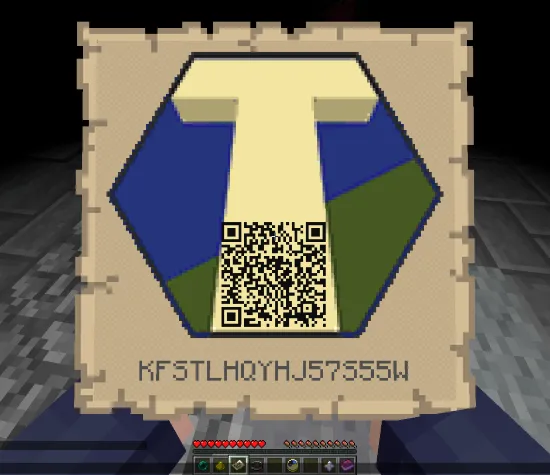
- Now open your authentication app and click the symbol to add a new account. Depending on whether your phone has a functioning camera, you can simply scan the QR code on your screen or type the secret below it into your phone.
- If the link was successful, you should now see a six-digit code displayed on your phone that is valid for 30 seconds and then regenerated. Enter the code into your Minecraft chat window now to confirm the link. Don’t worry, the message will not be written in the public chat.
- Done! You can now continue playing normally. Your account, your stats, and your ranks are secure.
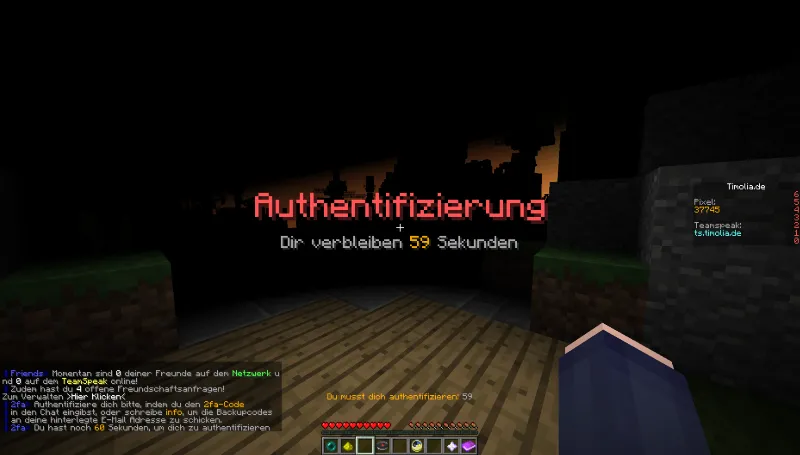
- Attention! Please note down the backup codes (viewable under
/2fa buc)! You must use these codes if you lose your phone or can no longer access your app for other reasons. Without backup codes, you can no longer access your account!

What else you can do
Section titled “What else you can do”Make sure you use different passwords for your Minecraft account, your email account, and all other services where you are registered. This way, an attacker never gains access to all your accounts simultaneously, and you can change passwords very easily.
It is recommended to use a password manager, e.g., Bitwarden.